

Atlassian Jira Overview
Atlassian Jira is the #1 software development tool used by agile teams. If you want to know more about Atlassian Jira then you must read our article What is Atlassian Jira? .
.
Create Jira free account
Creating Atlassian Jira free account is very simple and easy and you’ll love it once all of the steps are done for creating this free account, so let’s start.
First, you need to go to this Website Atlassian Jira and there you will see a button Get it free, you have to click on that button as shown below screenshot.
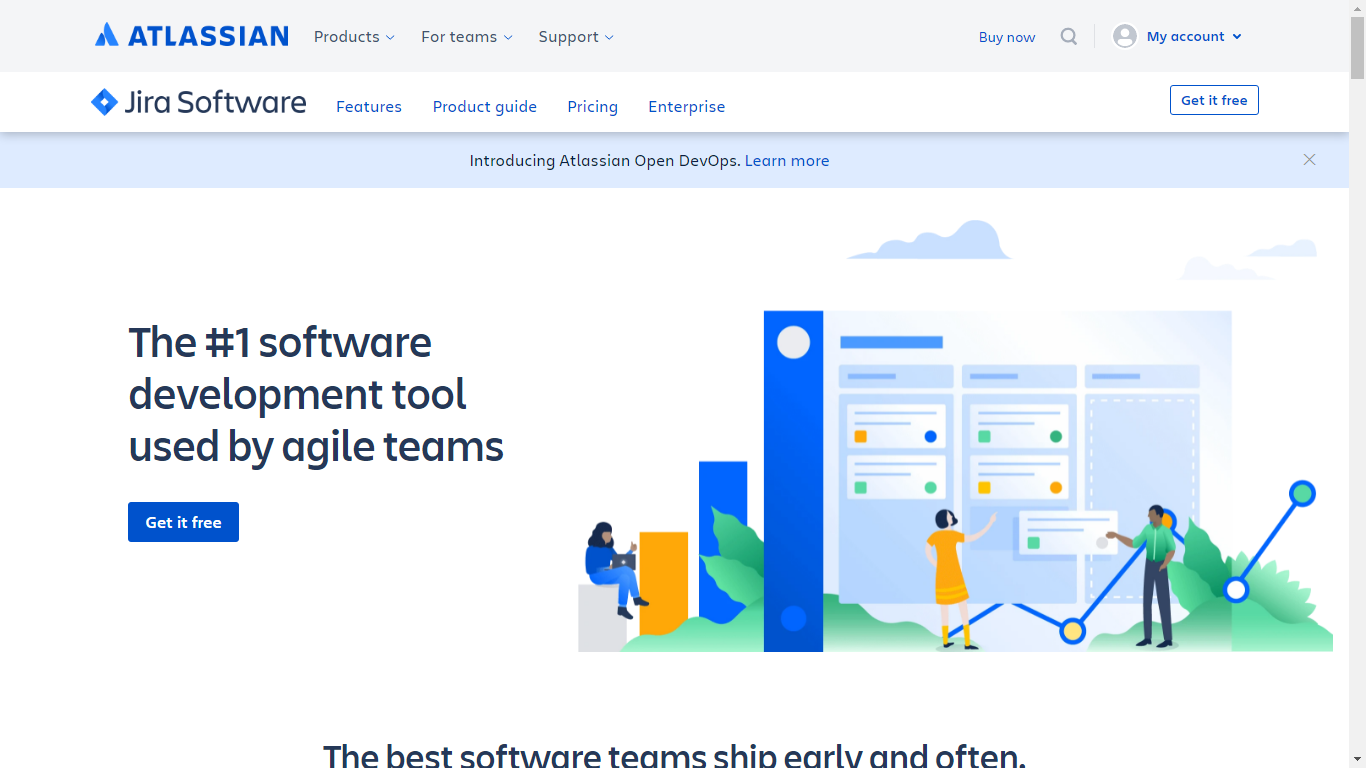
At this point, Atlassian will ask you to add any more products to your collection while creating this new Jira account. You can select any of the other products offered on this page by Jira. We have selected Confluence from this screen and when we finish setup for Jira, by default Confluence site will be created for us which we have to set up later. Read our other article if want to know more about How to create a free Confluence account from JIRA account?.
Once you select your required product from the previous screen, you’ll be directed to this screen as shown below in the screenshot.
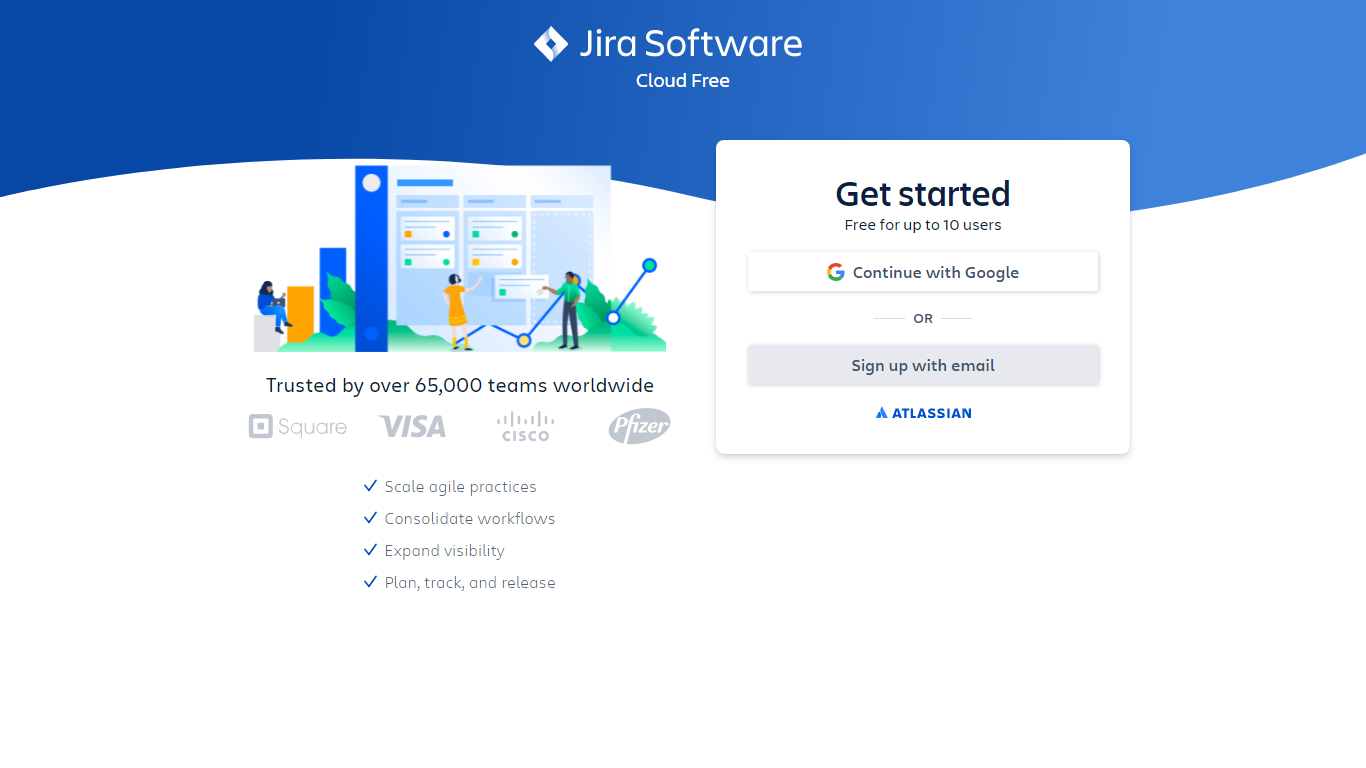
As per your choice, click either Continue with Google or Sign up with an email to create a new account in Atlassian. Based on your choice in this step, you will be directed to the process for sign up. If you choose to Continue with Google, then you have to select a Google account in the next step and if you selected Sign up with email, then you have to enter your email and password for that email. Depending on your choice, your default way to log in will be the same as login into the Jira account, so always remember your choice.
As shown below screenshot I have clicked on Continue with Google as my Gmail account is already logged-in in the browser so that I don’t have to go through email and password setup.
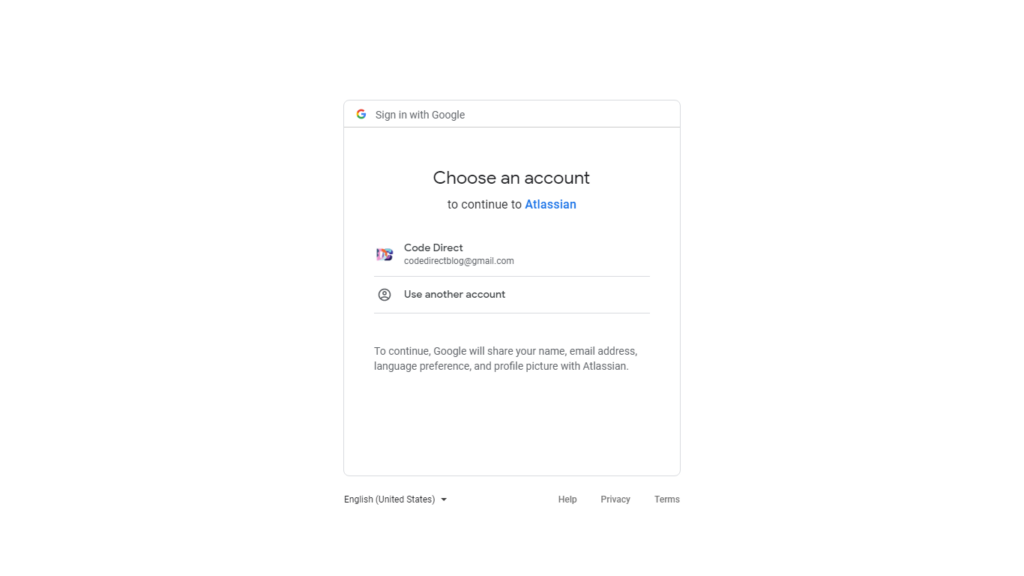
After selecting our Google account in the previous step, Atlassian asks us to review the information that will be used from your Google account to create your new Jira account.
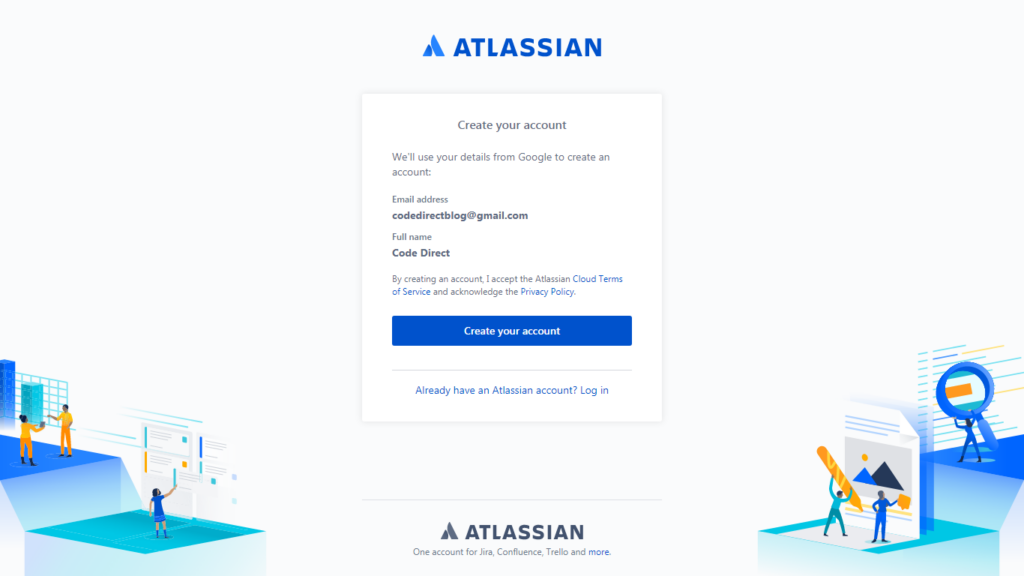
Once you review all information and ready to go further, you can click on Create your account. After this step, Atlassian will first create your account on Jira in the back-end and once account creation is done, Atlassian will take us to the Jira site set-up.

Okay, so at this point, our Atlassian account is created, Jira will ask you to enter your Jira site address in this step. Please note, the address you’ll enter in this step will not change in the future (verified as of 16-June-2021), so make sure you choose your desired site address for your Jira product. You can check how to move your projects from an existing Jira site to a new or other existing Jira site.
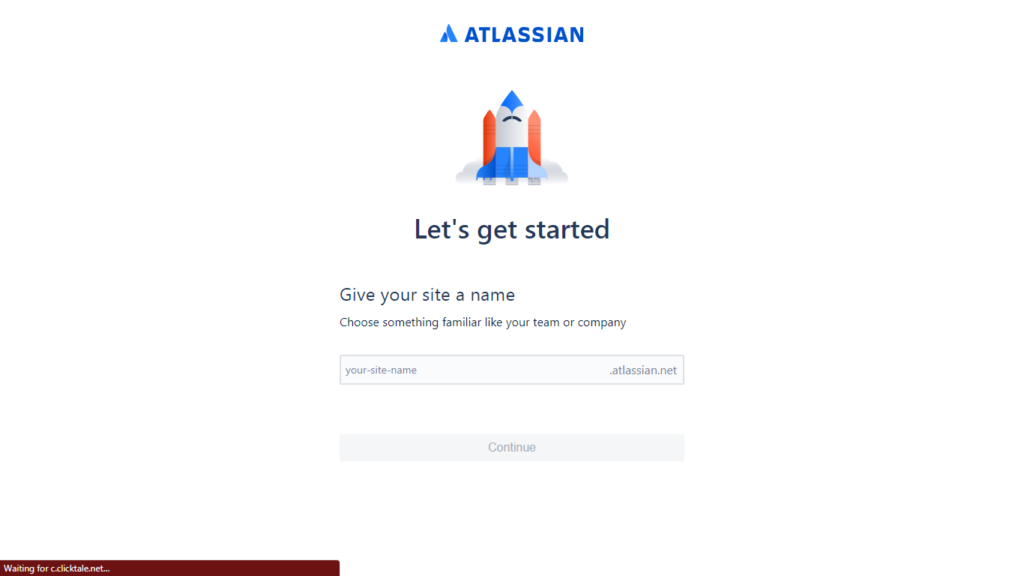
Once you enter your Jira site address, you’ll see some configuration for your Jira site, like what type of team do you work in? you can choose your answer accordingly and continue or you can totally skip this step.
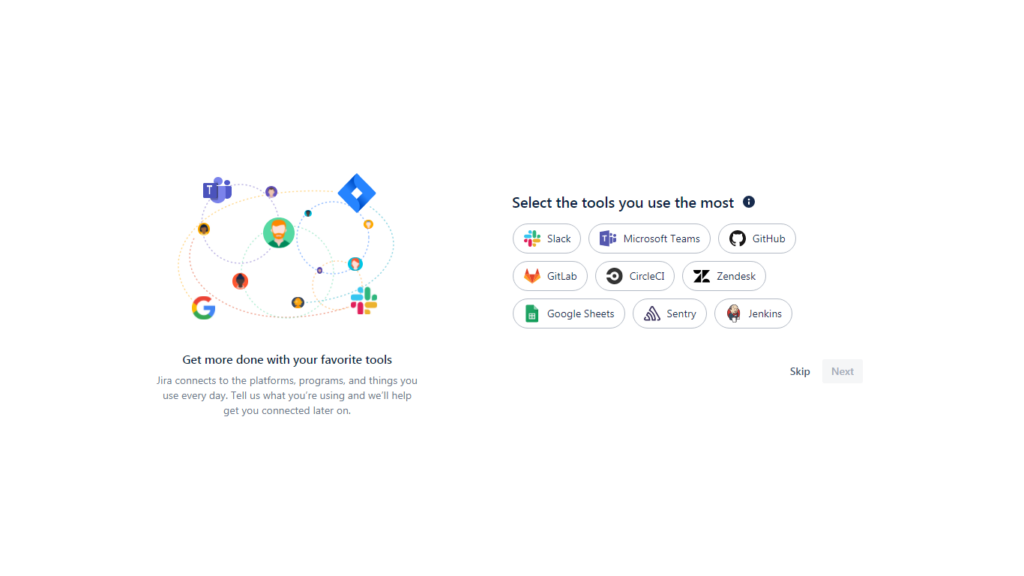
In the next step, Jira will ask you to select the tool you use most but you can skip this step completely as well if you don’t want to set up these tools now or if you want to set up your tool right now then select the tool and continue with the configuration of that tool from the Jira marketplace.
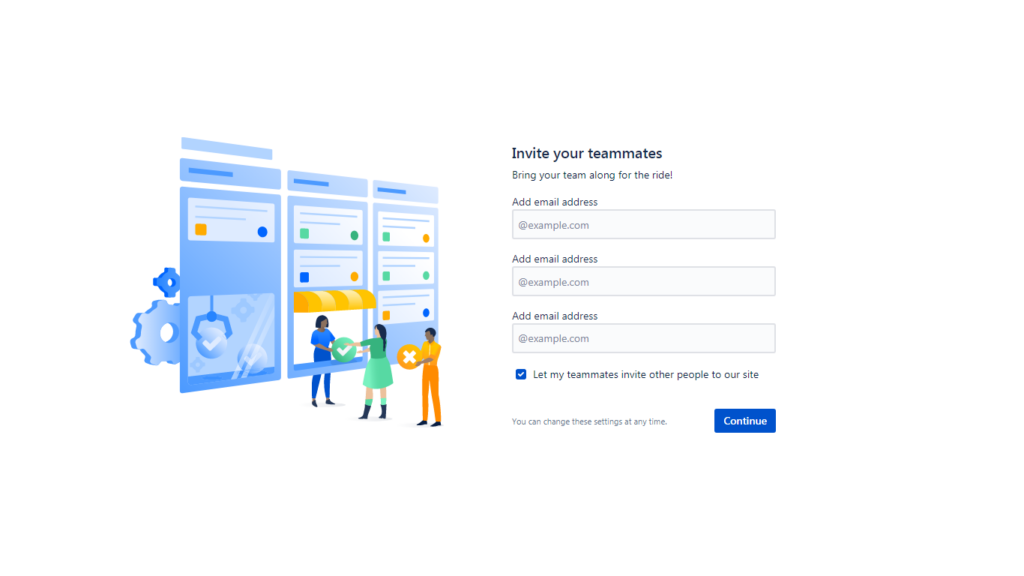
In the next step, Jira will ask you to invite your teammates, if you have your teammates address and would like to invite them, you can enter their email addresses and Jira will handle the invitation automatically and add them to your site as they create their account or join Jira through the invitation link.
You can skip this step completely by clicking Continue without entering any email address.
In the next step, you’ll see one more configuration of Jira Help us to set up your Jira experience and first project type.
This step is a combination of multiple fields, first, you will have to tell Jira whether you are a new or experienced person with Jira.
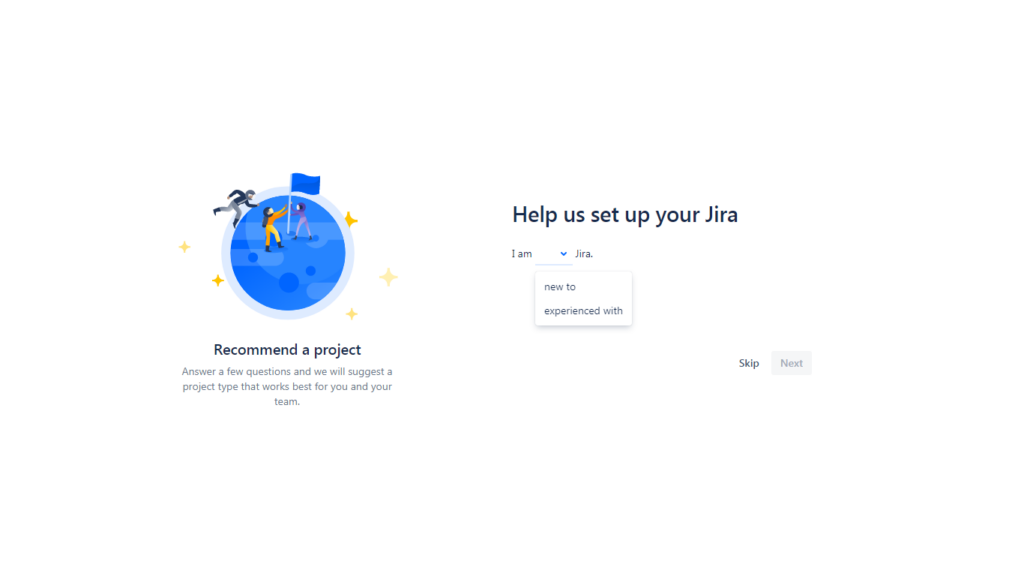
Then, according to your answer you’ll see the next item to fill, “My team is new to or experienced with agile methodologies“.

Based on the selection in your second question you’ll get the next question “we spend our time working on features or support/operations or fixing bugs”. You can select your option accordingly and based on your answer Jira will ask you the next question “we have a tight or flexible schedule to finish our work“.
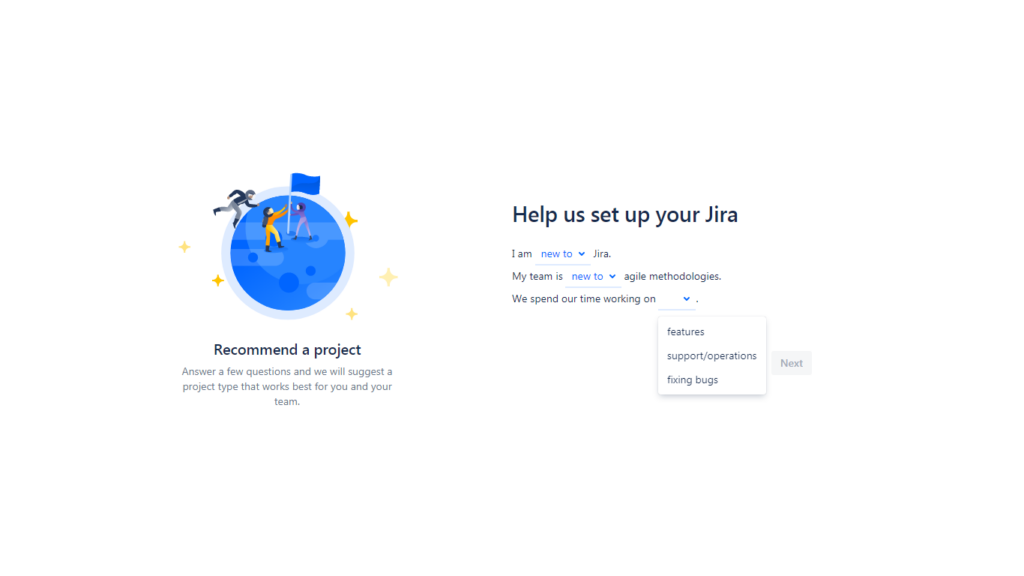
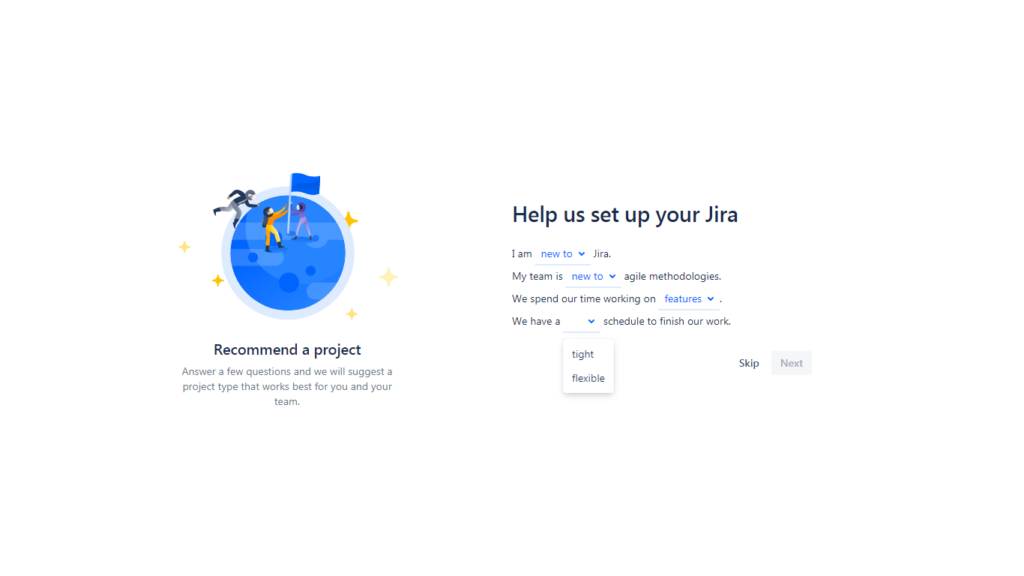
And then click next and your basic configuration is done.
Now, Jira will show you the templates to select for your first project and recommend one based on your answers which in our case is Kanban (Recommended).
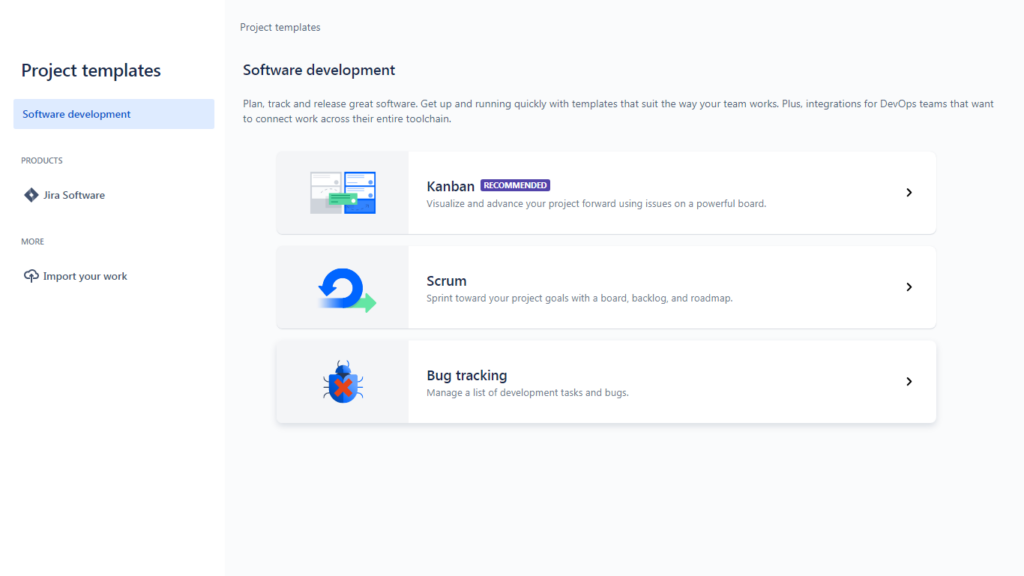
Select the template of your choice, I’ve selected Kanban as per our recommendation.
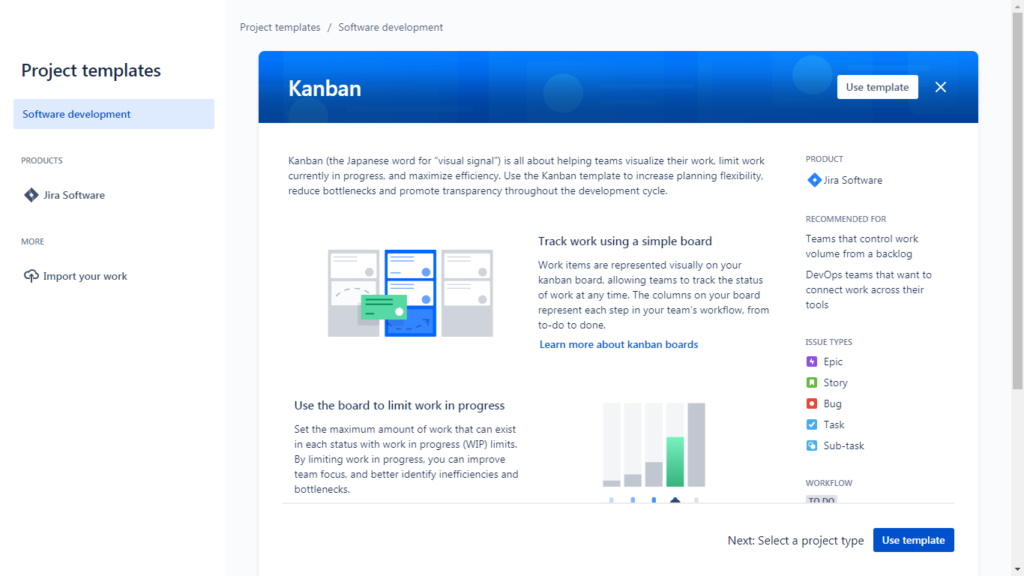
In the next step choose a project type. There are 2 project type that Jira cloud support and they are mentioned below:
- Team Managed – Isolated for your team only and not anyone else
- Company Managed – Shared throughout the company and other teams can also use it
We’ve selected Team-Managed, so in the next step, Jira asks us to enter the project name or you can close it and create the project later manually.

I’ve entered the project name in the previous step and Jira created a project for me and after that our Jira site setup is completed. At this time, we have our brand new Atlassian Account and Jira Site. After setup completion we’re landed on this page, this is a project board page where we can see the project board and issues attached with the board.

That’s all folks, your free Jira account is ready to see so start using it.
Important Note: if you don’t use a free Jira cloud account for 90 days it will be closed by Atlassian. You’ll get multiple notification emails before the Account close.


Pingback: How to create free Confluence account from JIRA account? – Code Direct